Cam-to-cam technology
Cam-to-Cam Video Not Working? Find the Failing Step
End the paid session, then separate the local camera, provider self-preview and remote playback. Test one branch at a time before changing another setting.
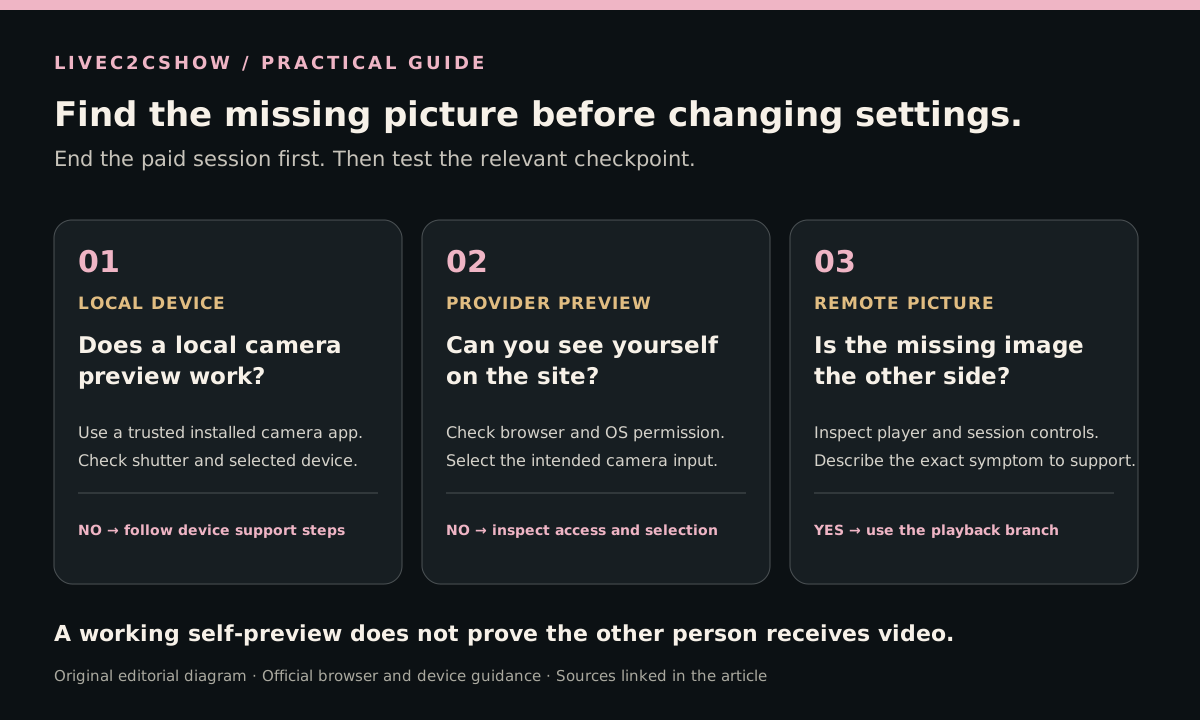
Start with the missing picture
When cam-to-cam video is not working, first describe what you can actually see. A blank picture of yourself, a working self-preview that the other person cannot see, and a remote video that will not play are different symptoms. Changing every permission at once makes them harder to distinguish.
This November guide uses current browser and operating-system support documents to build a practical diagnosis sequence. We did not find a verified new platform-wide outage or a defensible recent surge in failures. Treat this as a current troubleshooting resource, not a report that a particular provider is broken. LiveC2CShow is a discovery publisher; the session and its controls belong to the external provider.
Step 1: leave the paid session before experimenting
Check the provider's current session and billing controls before reloading. If you are unsure whether a session remains active, end it through the provider's interface and resolve that uncertainty first. A browser refresh is not a billing instruction.
Write down three observations: whether your self-preview works, whether you can see the remote picture, and whether either side can hear sound. Keep this note brief and private. Do not record the other participant or collect identifying screenshots to diagnose your own webcam. For the basics of two-way sessions, see our cam-to-cam guide.
Step 2: test your camera outside the website
If your self-preview is blank, begin with the device. Check the physical shutter, cable and selected camera. Use a trusted camera application already on your device for a local preview; you do not need to upload a test recording to an unfamiliar service.
Microsoft recommends testing in the Windows Camera app to separate a device problem from an application problem. Its support guide also identifies camera privacy settings and another application's use of the device as possible causes. Microsoft's Windows camera troubleshooting gives the official next steps.
No local preview: stop changing the provider's settings and investigate the device first. A working local preview: close that test application, then move to the browser check. This is a way to narrow the problem; a successful local test does not prove the entire call will work.
Step 3: check the browser and selected input
On desktop Chrome, open Settings, then Privacy and security, Site settings, and Camera or Microphone. Check the permission for the actual provider domain and the chosen input device. Camera and microphone are separate controls. If you have an external webcam, a virtual camera or more than one microphone, verify the selection rather than assuming the default is the device you intended.
Google also explains that operating-system permission may be required and that managed browsers can have settings controlled by an administrator. Follow the current device-specific instructions in Chrome's camera and microphone help. Allow access only for the provider you intend to use; granting access to the comparison site does not test the provider's camera controls.
Reload or restart only after a specific change, with the paid session already ended. Test the self-preview again before starting another session. Write down the result so that the next change tests a new possibility rather than repeating the same action.
Step 4: check operating-system access when needed
If the device preview worked but the browser still cannot show your camera, inspect the browser's operating-system access. On a Mac, Apple's current guidance points to camera permissions and Screen Time restrictions, and notes that an app may need to quit and reopen after permission changes. Its troubleshooting page was published on 27 March 2026. Use Apple's built-in camera support instructions for the controls on your version.
On Windows, Microsoft's guidance distinguishes Microsoft Store apps from desktop apps, including browsers. A browser may depend on the desktop-app access setting. Use the Windows troubleshooting page to identify the right setting. If a control is restricted on a managed device, use an authorized personal device or contact its administrator instead of trying to override policy.
Step 5: separate outgoing video from playback
A visible self-preview tells you the local capture path is working at that moment. It does not establish that the provider is sending that picture to the other participant. If they cannot see you, confirm the provider's explicit start-video or share-camera control and read any on-screen error. Ask support about that precise symptom if it persists.
If the missing picture is the remote video, return to playback checks. Use the player's play control and inspect its mute state and your chosen sound output. Mozilla's current media troubleshooting includes reloading after sound-device changes and reviewing autoplay, volume and interfering extensions. Firefox's audio and video guidance is a useful reference for that branch. A playback failure alone is not a reason to grant more camera access.
Know when to stop and ask support
After one controlled pass through the relevant branch, stop repeating paid attempts. Send the provider a concise description through its official support channel: browser and operating-system versions, the error text, whether local preview worked, and whether the failure affected outgoing or incoming video. Exclude account secrets, payment details and pictures of other people.
Do not install a browser extension or remote-access tool merely because an unsolicited message promises to repair a session. Keep further troubleshooting within the provider's documented process. Our cam-site privacy guide covers the broader disclosure decisions, while the mobile cam guide helps you review device suitability before another attempt.
The aim is to leave each test knowing one more thing. Local device preview, provider self-preview and remote playback are useful checkpoints precisely because none of them alone proves the whole session is healthy.